setWeblocThumb
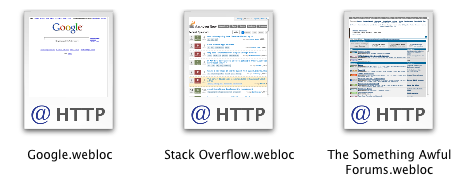
This is a small command-line program for OS X that assigns custom icons to Web Internet Location (.webloc) files, displaying a thumbnail of the web page that they point to.
This is what the icons look like:
Usage
Here's the usage info of this program (run it without any arguments to see this):
setWeblocThumb [options] <path>

  Sets custom icons for .webloc files that display
  a thumbnail of the web page that they point to.
  <path> may point to a .webloc file or a directory
  that contains .webloc files.

  Options:

  -f  Set icons also for files that already have a
      custom icon (they are ignored by default)
  -ni Do not load the site's favicon image and add it to
      the generated icon
  +j  Set Java on when taking screenshots
  -j  Set Java off when taking screenshots (default)
  +js Set JavaScript on when taking screenshots (default)
  -js Set JavaScript off when taking screenshots
  +p  Set browser plugins on when taking screenshots
  -p  Set browser plugins off when taking screenshots (default)
  -d <sec>  Wait for <sec> seconds before taking the
            screenshots
  -v  Make the output verbose.

setWeblocThumb -a <path>

  Create a user-specific launch agent for <path> that
  runs this program each time the contents of <path> change

setWeblocThumb -w

  List paths that are being watched by user-specific launch agents

setWeblocThumb -u

  Check for updates (and optionally auto-update self)

Version 0.9.9
Copyright (c) 2009-2012 Ali Rantakari
http://hasseg.org/setWeblocThumb
Automating It
If you'd like to have this program run automatically whenever you add .webloc files somewhere (e.g. by dragging them from your web browser windows), you can do this in a number of ways. If you have a license to the Hazel application, that might be easiest, but other ways are folder actions (via Automator) and launch agents, which I'll explain below.
Launch Agents
A launch agent is a configuration that tells the launchd system to do something (e.g. run setWeblocThumb) when something happens (e.g. a file is added to a specific folder).
You can use setWeblocThumb's -a argument to generate launch agents that watch certain paths in your filesystem. For example, run the following command to have it run every time you add files onto your desktop:
setWeblocThumb -a ~/Desktop
To learn more about launchd, launchctl and launch agents, please refer to Apple's documentation and the Wikipedia article.
Folder Actions
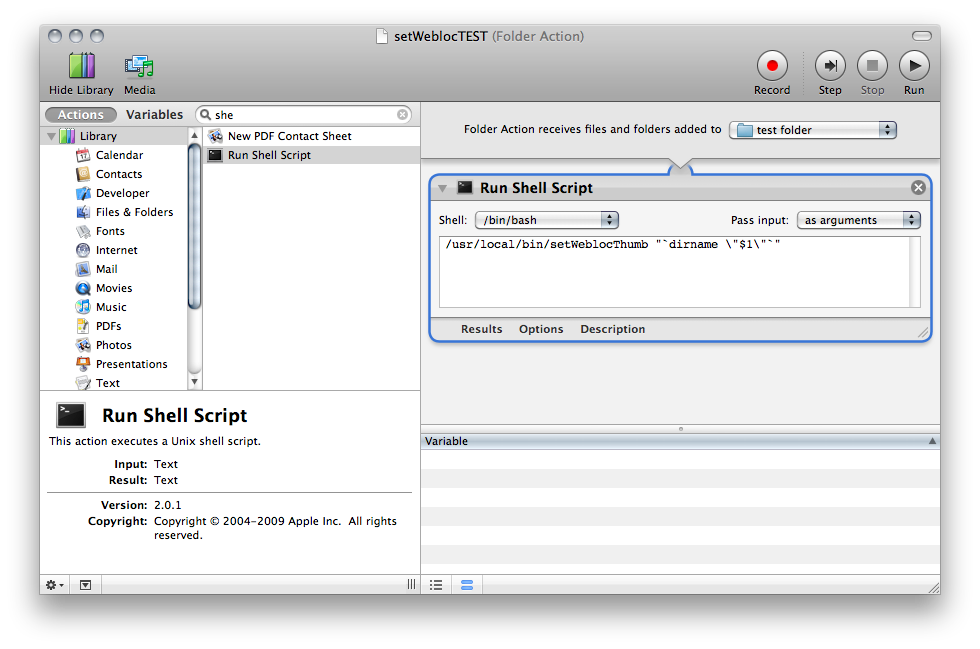 You can use Automator to create a folder action that runs
 setWeblocThumb whenever files are added to a particular folder.
- Open Automator and select the Folder Action template
- Select the folder you'd like to attach this action to from the combo box in the upper right-hand corner where it says "Folder Action receives files and folders added to"
- Drag the Run Shell Script action from the list in the left (it's under Utilities) to the action area on the right
- Select Pass input: as arguments in the action's settings
- Type the following into the shell script action's text field:
/usr/local/bin/setWeblocThumb "`dirname \"$1\"`" - Save
Latest Version:
Version 0.9.9
→
Download
February 04, 2012
Changelog:
- Implemented automated creation of launch agents that run
setWeblocThumbwhenever a certain path in the filesystem changes (e.g. whenever you drop.weblocfiles into a specific folder). This is done using the-aargument. - Implemented listing of filesystem paths that are watched via launch agents (using the
-wargument). - Dropped PowerPC support in the pre-built binary (I'm now using the XCode 4 dev tools, which do not support PowerPC anymore).
- Clarified the usage output a bit.